
What's the Best Way to Open an STL File?
Choose the tool based on what you need to do next. Opening a model for a quick look is different from editing its shape or preparing it for a printer.
| Your goal | Use this | Next step |
|---|---|---|
| Just see what's inside | Free online STL viewer | Open the file and rotate the model; no conversion required. |
| Check the dimensions | STL Viewer | Read X, Y and Z dimensions and use Measure for two points. |
| Prepare a 3D print | PrusaSlicer, Cura or your printer's slicer | Import the model, select a printer, review layers and generate print instructions. |
| Change the size or orientation | STL Editor | Check the original units before resizing or rotating. |
| Investigate holes or broken surfaces | STL Repair | Check what changed after trying an automatic repair. |
If the file won't load anywhere, go to STL troubleshooting before trying to edit or convert it.
How to Open an STL File Online (Fastest Method)
Using a browser is the simplest way to view an STL if you do not want to install a desktop application. It opens both binary and ASCII STL files. Large models may work better on a computer with more memory.
- Open the STL Toolkit Viewer. It works directly in your browser.
- Choose your file. Select Choose STL file or drop a .stl file into the viewer on a computer.
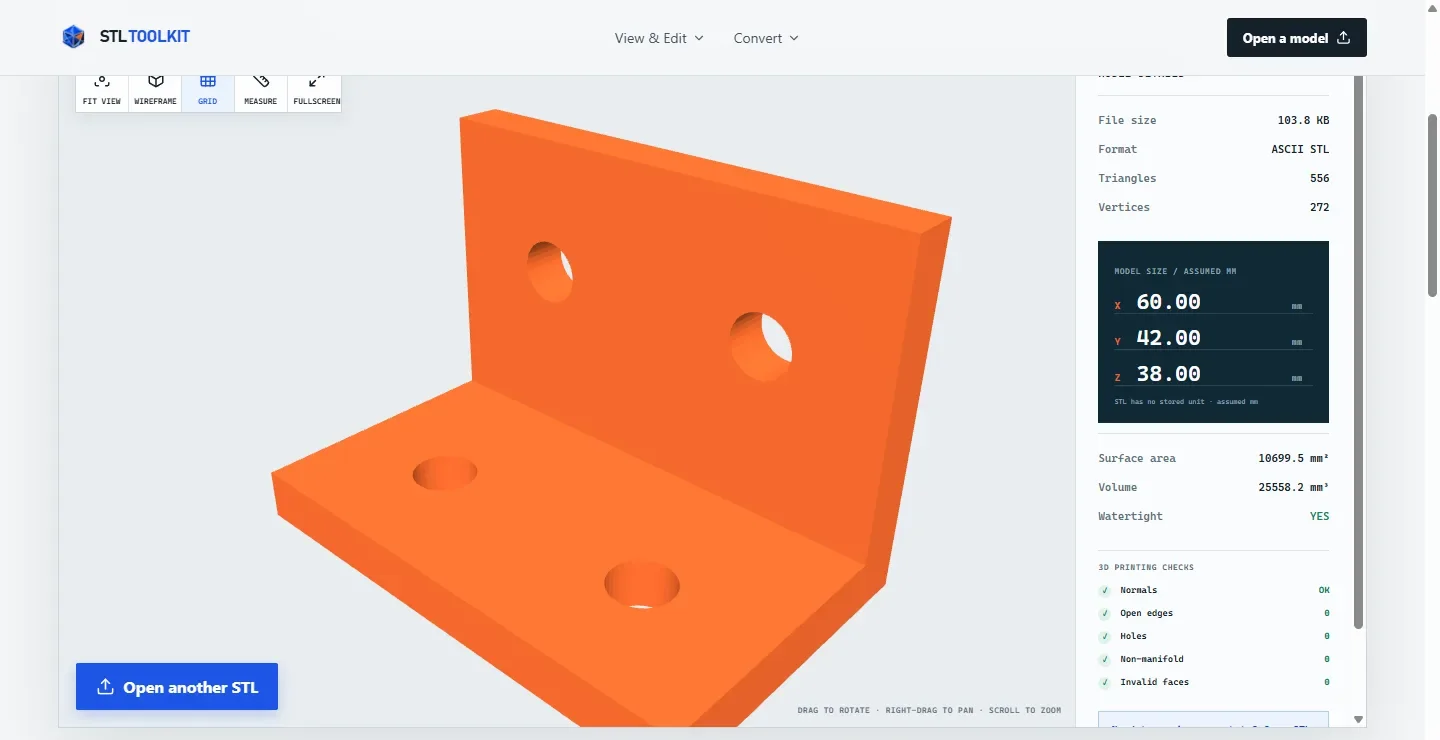
- Inspect the model. Drag to rotate, scroll to zoom, and use Fit view if the model is off-screen. Select Measure to check the distance between two points.
Try opening a sample STL file
Use this sample to follow the steps and compare the results on your screen. Download the sample bracket STL and select it with Choose STL file.
- Confirm the model appears. Rotate the bracket to inspect the opening and surrounding surfaces. Use Fit view if it looks off-screen.
- Check the dimensions. The original sample spans 60 × 42 × 38 units. STL files do not specify millimeters or inches, so this viewer displays the values as millimeters by default.
- Check the triangle count. The sample contains 556 triangles—small flat faces that make up its 3D surface. The text-based STL opens as a normal 3D model.
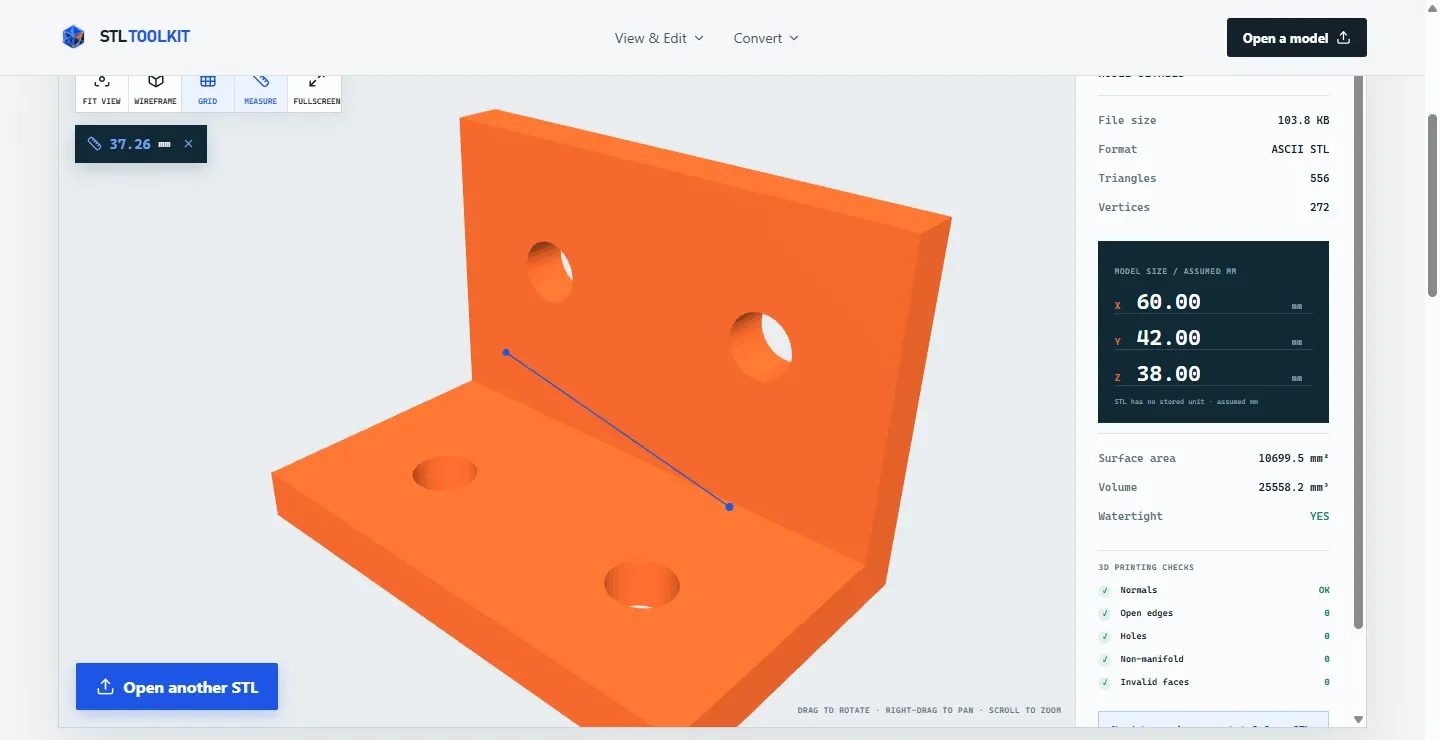
- Try a measurement. Select Measure, then choose two points on the 3D surface. The straight-line distance appears in the viewer; select another point to start a new measurement.
These numbers describe the downloadable bracket example. Your own STL will have different dimensions and triangle counts. Confirm the units used to create your file before resizing it.
Your STL stays in your browser and is not uploaded to our servers. If the 3D preview does not appear, try an up-to-date browser or another device.
How to Open an STL File on Windows 10 or 11
You do not need a built-in Windows app to open an STL. The browser method works on Windows 10 and 11, and a slicer is useful if you plan to print the model.
Option 1: Open the file without installing anything
- Open Chrome, Edge or another modern browser.
- Visit the online STL viewer and select your downloaded .stl file.
- Rotate and zoom the model; check the dimensions and mesh warnings.
Option 2: Use a program on your computer
Right-click the STL in File Explorer, choose Open with, and select an installed 3D viewer or slicer. If you don't see a suitable app, opening the file in your browser is simpler than changing its extension.
Windows 3D Viewer update (2026): Microsoft discontinued 3D Viewer and removed it from the Microsoft Store on July 1, 2026. If it was already installed, it can still work, but Windows 11 does not include it by default. See Microsoft's 3D Viewer notice. For new installations, use a browser viewer or a maintained slicer instead.
For example, in PrusaSlicer, you can drag the STL into the workspace or choose File → Import STL/3mf. Then confirm its size and orientation before slicing.
How to Open an STL File on Mac
The easiest method on any supported Mac browser is to use the online STL viewer. Recent versions of Apple's Preview app also support STL viewing, but availability depends on your macOS version.
Option 1: Open the STL in a browser
- Open Safari, Chrome or another modern browser.
- Visit the STL viewer, choose the .stl file from Downloads or Finder, and load it.
- Drag to rotate, zoom in and check the model details.
Option 2: Use Preview, if your macOS version supports STL
- Find the downloaded .stl file in Finder.
- Right-click or Control-click the file, choose Open With, and select Preview if available.
- Check that the 3D model appears and rotate it. If Preview cannot open the file on your macOS version, use the browser viewer or PrusaSlicer instead.
Apple's 3D file format reference lists STL, and its Preview 3D viewing guide explains available viewing features. Check the documentation for your installed macOS version rather than assuming every older Mac has these controls.
How to Open an STL File on iPhone, iPad or Android
On a phone or tablet, you can often open STL files directly in a browser. There is no need to convert the model to an image first. Touch gestures and file selection vary by device, and very large models may be slow.
iPhone and iPad (Safari)
- Download the STL. In the Files app, look under Downloads or the folder where you saved it. If your download is a ZIP, extract it first.
- In Safari, open the STL Toolkit Viewer and tap Choose STL file.
- Select the actual .stl file in the file picker. Use one finger to rotate and pinch to zoom. Touch controls may vary slightly between browsers.
- Use Fit view if the object is off-screen. For very large models, try a computer with more memory.
Android (Chrome)
- Find the downloaded file in Files or Downloads. Unzip it first if you downloaded an archive rather than an STL.
- Open the browser STL viewer in Chrome, tap Choose STL file and select the STL from your device.
- Drag with one finger to inspect the shape and pinch to zoom where supported. Use Fit view when you can't find the model.
- If Chrome runs out of memory or the preview stays blank, try the same file on a desktop viewer.
If your browser cannot display the 3D model, try updating it or opening a smaller STL file. Mobile memory and graphics capabilities vary.
How to Open STL Files on Linux or Chromebook
The browser method also works on many Linux systems and Chromebooks with WebGL. Open the online viewer, choose the STL and inspect it. Choose this option if you only need to view the model.
Use a Linux desktop program if you need more controls
- Install a compatible program such as Blender, MeshLab or PrusaSlicer using its official download or your Linux distribution's supported package source.
- In Blender, use File → Import → STL where available, and select the .stl file. The menu location can vary by Blender version.
- If you intend to print, open the model in PrusaSlicer or another slicer to check scale, supports and layers.
For Chromebook, Chrome is usually the simplest choice. Installing Linux desktop applications requires that your particular Chromebook support and enable the Linux environment. For Blender's import options, see the official STL format manual.
Which Programs Can Open STL Files?
Choose a program based on what you want to do with the STL. Viewing, editing and preparing a 3D print are different tasks.
| Program | Best for | Installation |
|---|---|---|
| STL Toolkit Viewer | Viewing, measuring and checking common surface problems | No |
| PrusaSlicer | Preparing 3D prints | Yes |
| UltiMaker Cura | Slicing for compatible printers | Yes |
| Blender | Editing and modeling meshes | Yes |
| MeshLab | Checking and repairing detailed 3D surfaces | Yes |
| Apple Preview | Basic STL viewing on supported macOS versions | System app |
Opening a file in a viewer does not create printer instructions. To print the object, you still need to open it in an appropriate slicer and review its settings.
Is an ASCII STL different from a binary STL?
Both formats contain the same kind of 3D shape. An ASCII STL contains readable words such as solid, facet and vertex; a binary STL stores the triangles in a compact binary layout. A compatible STL viewer opens either type, so you do not need to convert the file just to see it. Our downloadable bracket exercise is an ASCII STL, but it opens as an ordinary 3D shape.
STL vs 3MF, OBJ and G-code
STL describes triangle geometry, without a dependable way to preserve the object's measurement units, colors or printer settings. 3MF can carry richer model and print-project information, depending on the exporting application. OBJ can reference materials and textures, but they may be stored in separate files. G-code is printer-oriented machine instructions rather than a general 3D mesh. If your download is a ZIP or a 3MF, don't rename it to .stl. Open it with compatible software; if you specifically need STL mesh geometry from a 3MF, use a 3MF to STL converter and review what project settings may not carry over.
What Should You Check After Opening an STL File?
Opening the file is only the first step. Check its shape, size and surface before using it for 3D printing.
1. Check the overall shape
Rotate the model to see all sides, including its underside and any openings. Select Fit view if the object is off-screen, then use Wireframe if you need to see its triangular surface. A model lying on its side is not necessarily damaged; adjust its orientation in a slicer if you are preparing a print.
2. Check dimensions and measurement units
Read the width, height and depth. STL files do not store units, so this viewer displays the coordinate values as millimeters by default. If the creator used inches, check the scale before changing dimensions. For example, a 2-inch side exported with a value of 2 may appear as 2 mm instead of 50.8 mm when another program assumes millimeters. If the original model was made in inches, multiply its dimensions by 25.4 to convert them to millimeters. Confirm the original units first. Use STL Editor if a scale change is really needed.
3. Check for holes and mesh issues
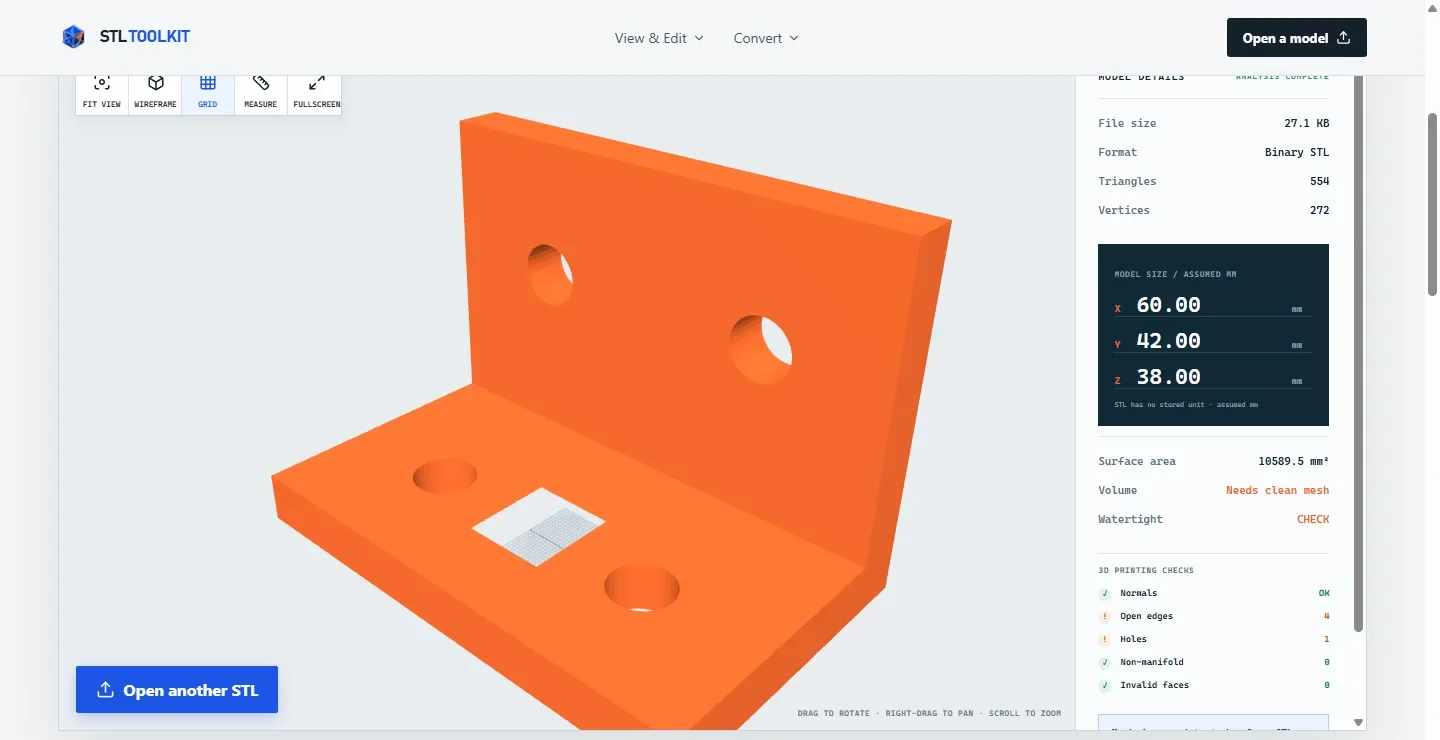
Review the model's basic surface checks. Open edges are exposed borders and may indicate holes or intentionally open surfaces. Non-manifold edges can occur where too many faces share an edge, making the printable shape ambiguous. A surface check cannot find every overlapping face or tell you whether the walls are thick enough to print. If you find an unexpected opening, try STL Repair, then compare the model before and after the repair. For instructions on repairing holes and non-manifold edges, read how to fix a non-watertight STL file.
Why Won't My STL File Open? Common Fixes
Start by finding out whether the problem is your file, the app used to open it or the device's ability to display a complex 3D model.
Four things to try before converting the file
- Open a known-working STL. Download our sample bracket and load it in the same browser viewer. If the sample opens but yours does not, the problem may be with your file rather than the viewer.
- Check the file extension. The file should end in .stl, not .zip, .3mf or .stl.txt. Extract ZIP archives first; renaming an unrelated file to .stl will not convert it.
- Try a second compatible program. If a desktop slicer also rejects your STL, try downloading the original again or asking the creator to re-export it.
- If it loads but looks empty, use Fit view. The model may be too small, too large or off-screen to see clearly. If only large models fail, memory or graphics limits may be involved.
| What happens | Likely reason | What to try first |
|---|---|---|
| Double-clicking does nothing | No app is assigned to STL files. | Use Open STL Viewer or choose an installed slicer using Open with. |
| The file opens as text | An ASCII STL was opened in a text editor. | Use a 3D viewer; there is usually no need to change the file format. |
| The download is a ZIP | Your .stl is still inside an archive. | Extract the ZIP and select the actual .stl file. |
| The sample loads, but your STL fails | Your file may be incomplete, oversized or not actually an STL. | Check its extension and download source, then try a desktop slicer. |
| The model appears blank | The object may be off-screen, damaged or difficult for your browser to display. | Use Fit view; try the sample; then try another compatible viewer. |
| The model is tiny or huge | The original units may differ from the viewer's millimeter assumption. | Confirm the intended units before using STL Editor to change the scale. |
| The model looks broken | Missing or invalid faces, open boundaries or design features. | Check the warnings and try STL Repair if the opening is unintended. |
| Only large STL files freeze | The file may be too complex for your device to display smoothly. | Use a desktop program or reduce file size if the original can be opened elsewhere. |
| The 3D preview never appears | Your browser or device may not support the 3D preview. | Update your browser or try another device. The viewer needs a browser that supports 3D graphics. |
An STL contains the model shape, not instructions for your printer. Even if it opens correctly, check the size, shape and sliced layers before printing.
Frequently Asked Questions About Opening STL Files
What program do I need to open an STL file?
Use an STL viewer to look at the model, or a slicer such as PrusaSlicer or Cura if you plan to 3D print it. For a quick look, choose your file in an online STL viewer. You do not need to convert it first.
Can I open an STL file without installing software?
Yes. Open an online STL viewer and choose the file from your device. STL Toolkit supports both ASCII and binary STL, and you can rotate, zoom and check the model dimensions without installing anything.
Can I open an STL file on my phone?
Yes, on many phones. Open the STL viewer in Safari or Chrome, choose the downloaded file and use touch gestures to inspect it. Large models may load more smoothly on a computer.
Why can't I double-click an STL file?
Your computer may not have an app assigned to .stl files. Open the file in an online STL viewer, or right-click it and choose Open with to select an installed 3D program.
What is the difference between an STL viewer and a slicer?
An STL viewer lets you rotate, zoom and inspect a model. A slicer helps you set it up for a 3D printer, including print orientation, supports and layers. Use a viewer to check the shape, then a slicer if you want to print it.
Why does my STL show the wrong size?
STL files do not specify inches or millimeters. A model created in inches may look 25.4 times too small when opened as millimeters. Confirm the original units before resizing it.